
ESign iOS
If you plan to install an iPhone app that is not offered through the App store, Esign iOS is an alternative option you might encounter. It enables you to sign supported IPA files and install apps through compatible sideloading methods, providing more options when evaluating apps, trying pre-release builds or using software made available outside Apple's authorized marketplace.
Compared with traditional sideloading processes that depend on a computer, Ensign can manage various signing tasks directly on your iPhone or iPad. Still, you must have a compatible IPA file and a valid signing process.
Certificate invalidation, profile restrictions and iOS security measures may cause installation, so selecting the right setup is just as much as obtaining the app. Whether you are looking for ESign iOS installation instructions, an IPA signer for iOS or help resolving signing problems it explains essential information prior to installation.
What is ESign iOS?
ESign iOS serves as an IPA signing feature built to assist with signing and installation compatible iPhone apps. An IPA package includes an iOS app bundle and signing enables the operating system to check the app’s authenticity and integrity before execution. The key benefit of ESign is its on-device workflow. You can add an IPA, specify an eligible signing certificate, customize available signing options and install the signed apps without necessarily using a PC or Mac.
Main Features of ESign iOS
ESign integrates a range of useful features for controlling and signing IPA packages on an iPhone and iPad device. The available features can make app testing easier, while access to these features varies according to the version and signing approach you choose.
On-Device IPA Signing
One of the main benefits of ESign is the option to sign compatible IPA packages directly on your iOS device. Rather than sending each package to a computer, you can control compatible signing operations from your device and get apps ready for installation. The feature is especially helpful when you frequently test beta releases or test builds.
No Jailbreak Required
ESign allows sideloading procedures without requiring you to jailbreak your iPhone. A jailbreak modifies the system’s default restrictions, while certificate-based installation employs approved signing mechanisms to meet the requirements outside the App Store. Skipping a jailbreak can make the process more convenient and lessen the need to adjust system protections. However, you should check every IPA before installation because an app downloaded from an unknown source may introduce privacy and security concerns no matter the signing tool you choose.
App Developer Certificate Support
ESign can use eligible Apple developer and distribution signing credentials. Depending on your setup, you may need a P12 certificate containing a private key and a provisioning profile that matches the application and intended installation method. The files are different from an ordinary download link.
Built-In Certificate Management
Handling certificate files within ESign can streamline your process when working with several IPA packages. Depending on the version, you may have the option to add certificates and provisioning files, choose a signing setup and reuse the relevant credentials for eligible apps. Secure your signing credentials private.
Flexible IPA Installation
ESign allows you to install eligible apps that are not available through the App Store. You may use it for development testing, in-house app versions or other authorized apps shared as IPA files. The outcome depends on the structure and signing conditions. Some apps require particular entitlements, extensions or connected services, so a valid signature does not ensure that all features will work once installed.
How to Install and Download ESign for iOS
Can I install ESign on my iPhone? It depends on the version of iOS you’re using and the way you install the app. Make sure you download from a reliable source and a version works with your device.
Choose a trusted Esign provider
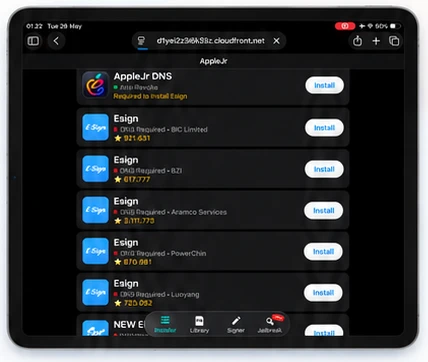
Download the Esign IPA file from a reliable source such as the authorized project page on GitHub. Download and check the release and setup instructions before proceeding with the downloading. Avoid websites that claim certificates will never expire.
Check the Requirements
Some installation options need a developer certificate, provisioning profile or computer. Confirm the requirements for your selected method before you begin. Avoid installing unknown configuration profiles on your iPhone.
Install ESign on your iPhone
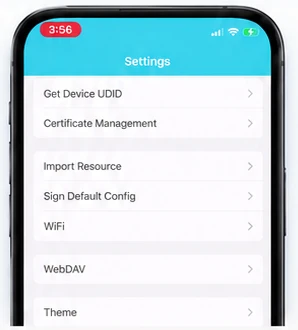
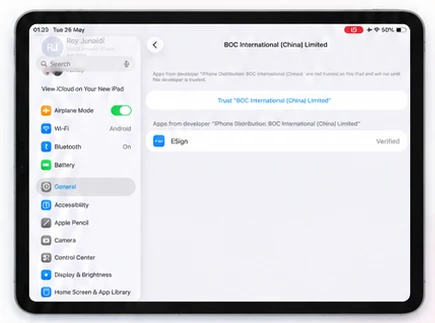
Follow the provided instructions for your preferred installation method. When setup is complete, start the ESign to check whether it runs as expected. If iOS presents a developer verification alert, verify the certificate before continuing.
Test eSign functions
If you get an error or ESign stops working, confirm the app’s compatibility with your iOS release and the certificate’s validity. Installing the app again will not resolve an expired or revoked certificate.
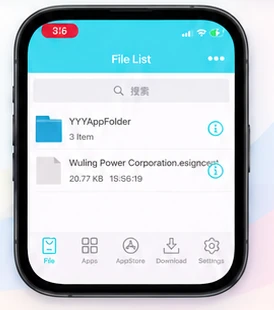
How to Sign and Install IPA Files Using ESign
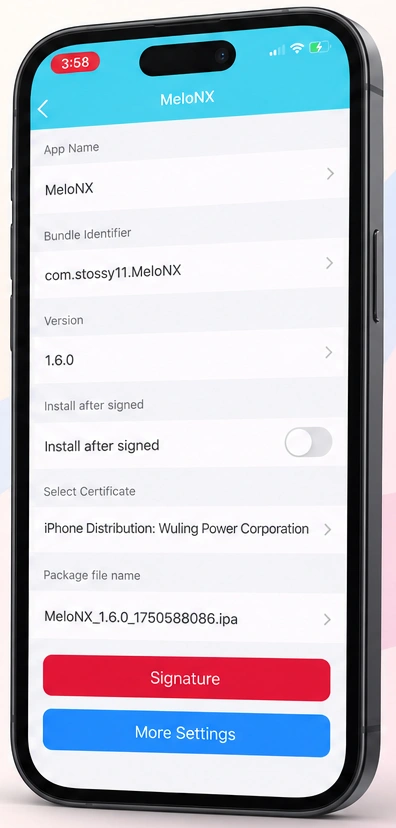
ESign enables you to sign and set up supported IPA files on your iPhone. Add the file, choose a valid certificate, sign the app and install it. The steps are simple.
Import Your IPA File
Download the IPA file from a reliable source and start ESign. Tap the import feature to lead the file. Make sure the app is safe and will work with the version of iOS you have before you install it.
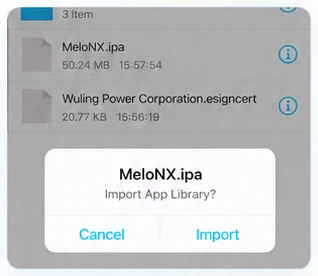
Choose a Valid Certificate
Select a valid certificate and provisioning profile to sign the IPA file. If the signing process fails, verify that your certificate has not expired and that it supports the app.
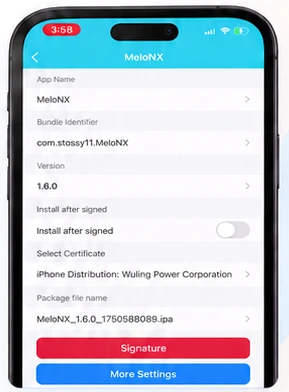
Sign the IPA file
Viewing the signing options and keeping the settings needed by your app. Tap the sign button and wait for the process to complete. If an error appears, review the message to identify the cause.
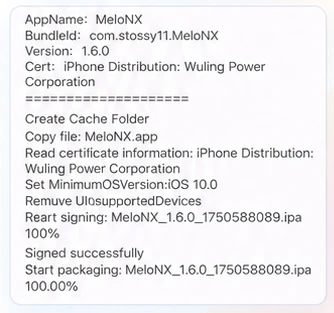
Setup and Test Application
Once signed, click on install and proceed with the instructions displayed on the screen. Once the app is your Home Screen, open it up and make sure it runs smoothly. If the app closes unexpectedly, the app may be incompatible or have signing errors.
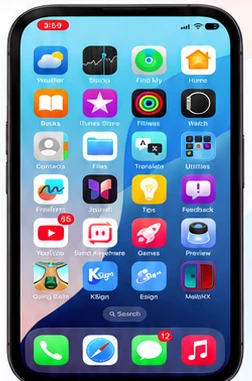
ESign iOS vs Scarlet, AltStore, Troll Store and GBox
These tools offer alternative options to set up through third-party installation methods, but their requirements and compatibility differ. ESign specializes in IPA signing, while AltStore relies on its own signing and refresh procedure and TrollStore relies on specific iOS version requirements.
| Feature | ESign | Scarlet | AltStore | TrollStore | GBox |
|---|---|---|---|---|---|
| On-device workflow | Supported methods | Supported methods | Limited by workflow | Depends on setup | Supported methods |
| Computer required | Not always | Not always | Often for initial setup | Depends on installation method | Depends on method |
| Certificate requirements | Method-dependent | Method-dependent | Uses its own signing workflow | Different installation mechanism | Method-dependent |
| Universal compatibility | No | No | No | No | No |
ESign iOS Compatibility and Requirements
Before getting ESign, confirm your iPhone model, iOS version and the specification of the selected release. Certain third-party tutorials claim compatibility with iOS 11 and later, but a general version range should not be considered as evidence that every version or certificate works on every device. Your signing process also matters. A personal development certificate, a corrected configured distribution process and a third-party enterprise installation may involve different requirements.
Is ESign iOS Safe to Use?
The security of ESign relies on the origin of the app, the signing credentials you choose and the IPA files you install. In such cases where a genuine signing utility can be helpful for development and testing purposes, it certainly doesn’t mean that third party apps are free of malicious or privacy concerns.
Final Thoughts
ESign for iOS can make IPA signing and app setup easier when you want additional control than the App Store experience offers. Its on-device process and certificate management options can be valuable for developers, testers and users who understand the requirements of sideloading. You should verify the source, check the certificate validity and ensure compatibility with your device before you download ESign or install an IPA. Properly setting it up helps you minimize common installation errors, with an emphasis on security and privacy.
Frequently Asked Questions
What is ESign iOS used for?
ESign iOS enables you to sign supported IPA files and install apps on an iPhone or iPad through supported sideloading options. It is beneficial for software testing and apps installed without the App Store.
Do you need a computer to run ESign iOS?
Not in every case because some supported ESign procedures work directly on your device. Alternative installation options may need a computer or an initial setup process.
Is ESign iOS available at no cost?
Some ESign releases might be offered without payment, but certificate access and set up requirements differ. Free access does not ensure that all signing service will stay available.
Can you run ESign without a jailbreak?
Yes, ESign supports sideloading methods that do not depend on a jailbreak. You will still require a compatible IPA and a valid signing process.
Why does ESign iOS stop working?
A certificate may expire or lose its valid status or a new version may introduce compatibility issues. Review your signing configuration and installed version to determine the cause.
Is ESign safer than other IPA signing tools?
Safety relies on the source, signing method, certificate management and app package instead of the tool’s name alone. Obtain from reliable sources and refrain from installing IPA files you cannot confirm.